> ## Documentation Index
> Fetch the complete documentation index at: https://docs.surfaice.pro/llms.txt
> Use this file to discover all available pages before exploring further.
# Punch Walk Guide
> Run store inspections by voice. You walk and talk — the agent does the paperwork.
*Five Below × Surfaice AI · v6 draft · August 2026*
> One link for everything: **[agent.surfaice.pro](https://agent.surfaice.pro)**
## How it works
On a punch walk you already know what to look for. The slow part was never the walking — it was the recording: finding the right line, ticking it, typing the issue, doing it again 300 times. That part is now the agent’s job. You describe what you see, out loud, in any order — and the punch is captured while you’re still standing in the store:
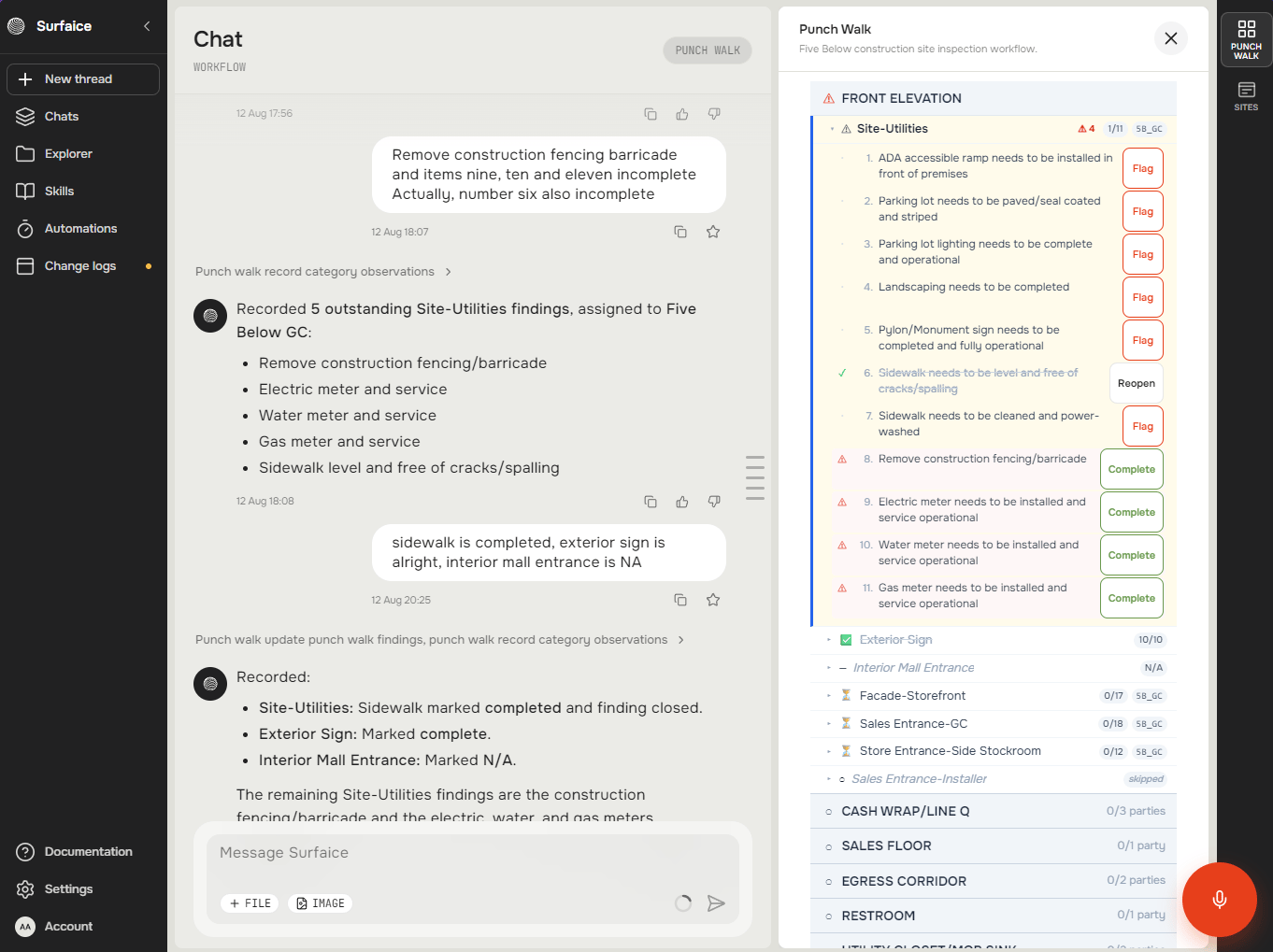 Every finding lands on the right checklist line, with the right responsible party, and the live state of the walk stays on a panel beside the chat. If the agent gets something wrong, tell it in plain words — it fixes the record and learns.
The data side is automatic too: the agent pulls everything it needs — contacts, dates, deal type, the store’s checklist — from **SiteFolio** on its own, and loads the results back into **Smartsheet** on its own. No copying between systems, no double entry. *(For now, while we test: results go to the sandbox copy of Smartsheet, not the live one.)*
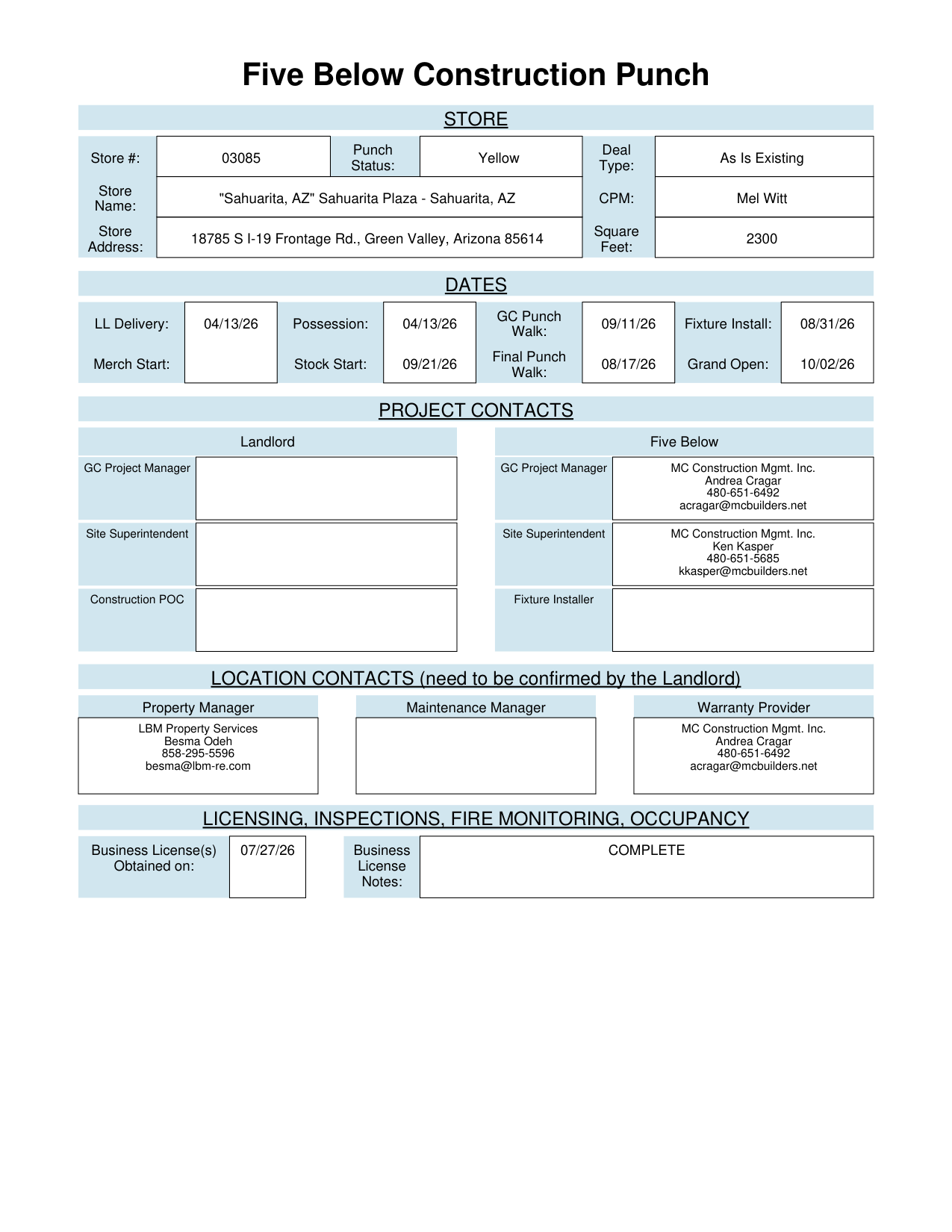
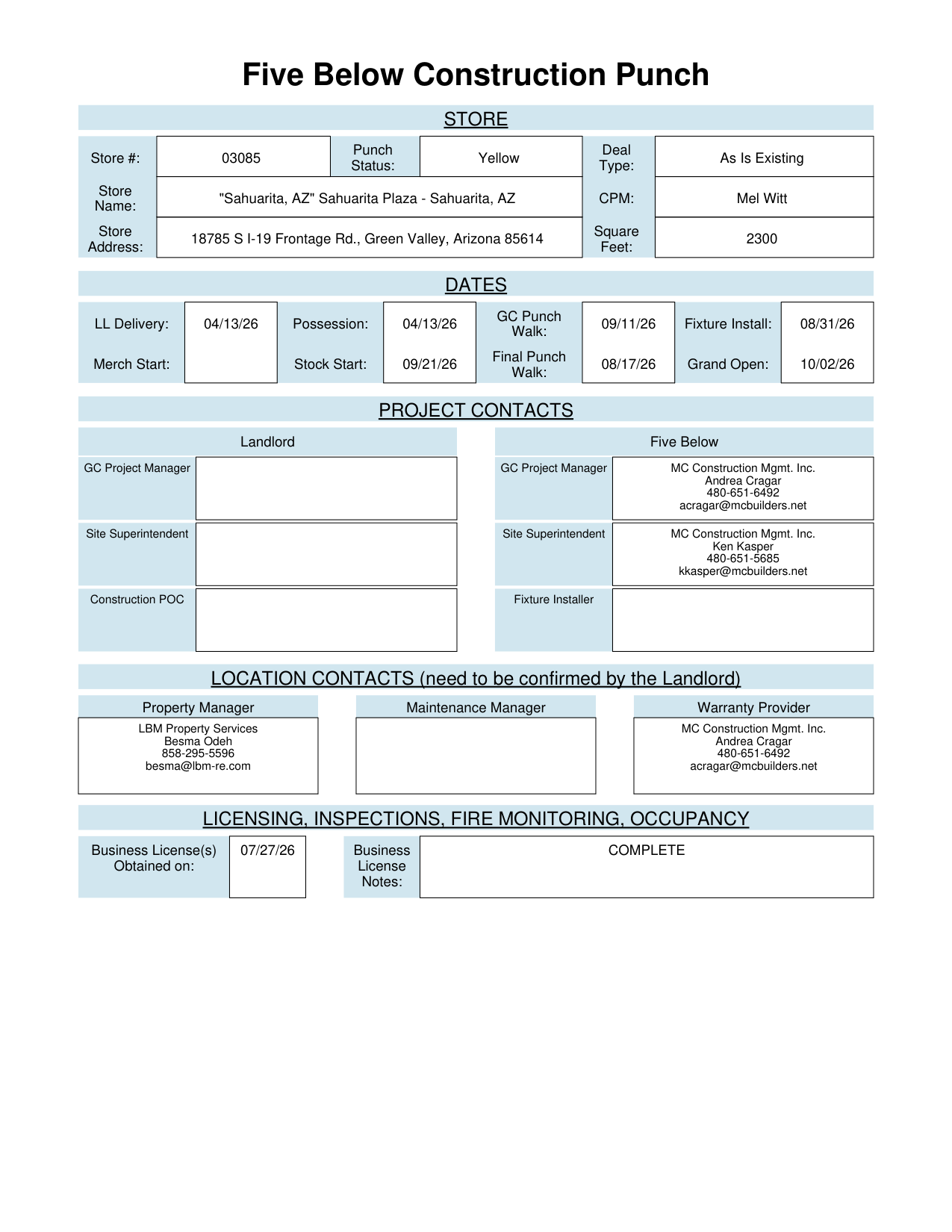
**And the result is the same report you send today.** The walk fills the familiar Construction Punch form — same fields, same PDF — so nothing changes for anyone downstream. What changes is your evening: the report is done when the walk is.
Every finding lands on the right checklist line, with the right responsible party, and the live state of the walk stays on a panel beside the chat. If the agent gets something wrong, tell it in plain words — it fixes the record and learns.
The data side is automatic too: the agent pulls everything it needs — contacts, dates, deal type, the store’s checklist — from **SiteFolio** on its own, and loads the results back into **Smartsheet** on its own. No copying between systems, no double entry. *(For now, while we test: results go to the sandbox copy of Smartsheet, not the live one.)*
**And the result is the same report you send today.** The walk fills the familiar Construction Punch form — same fields, same PDF — so nothing changes for anyone downstream. What changes is your evening: the report is done when the walk is.
 ## Set up once
Three things before your first walk. Two minutes, once per iPad.
Open **[agent.surfaice.pro](https://agent.surfaice.pro)** in **Safari** and sign in with your Five Below SSO.
Add it to your Home Screen: Share → **Add to Home Screen**. You get a one-tap app icon.
Do a 30-second mic check: tap the mic **(3)**, say a test phrase, watch your words appear.
Safari asks for microphone access the first time — tap **Allow**. If nothing appears when you speak:
1. **Tap the mic again.** If you dismissed the prompt once, Safari will not ask again on its own.
2. **Grant it for this site:** in Safari, tap the **ⓐA** icon at the left of the address bar → **Website Settings** → set **Microphone** to **Allow**, then reload the page.
3. **Check Safari's global setting:** iPad **Settings → Apps → Safari → Microphone** → **Ask** or **Allow** (not Deny).
4. **Check the system switch:** iPad **Settings → Privacy & Security → Microphone** → **Safari** on.
Still nothing? Email us — do not lose the walk over it; you can type into the message box instead of dictating.
## Set up once
Three things before your first walk. Two minutes, once per iPad.
Open **[agent.surfaice.pro](https://agent.surfaice.pro)** in **Safari** and sign in with your Five Below SSO.
Add it to your Home Screen: Share → **Add to Home Screen**. You get a one-tap app icon.
Do a 30-second mic check: tap the mic **(3)**, say a test phrase, watch your words appear.
Safari asks for microphone access the first time — tap **Allow**. If nothing appears when you speak:
1. **Tap the mic again.** If you dismissed the prompt once, Safari will not ask again on its own.
2. **Grant it for this site:** in Safari, tap the **ⓐA** icon at the left of the address bar → **Website Settings** → set **Microphone** to **Allow**, then reload the page.
3. **Check Safari's global setting:** iPad **Settings → Apps → Safari → Microphone** → **Ask** or **Allow** (not Deny).
4. **Check the system switch:** iPad **Settings → Privacy & Security → Microphone** → **Safari** on.
Still nothing? Email us — do not lose the walk over it; you can type into the message box instead of dictating.
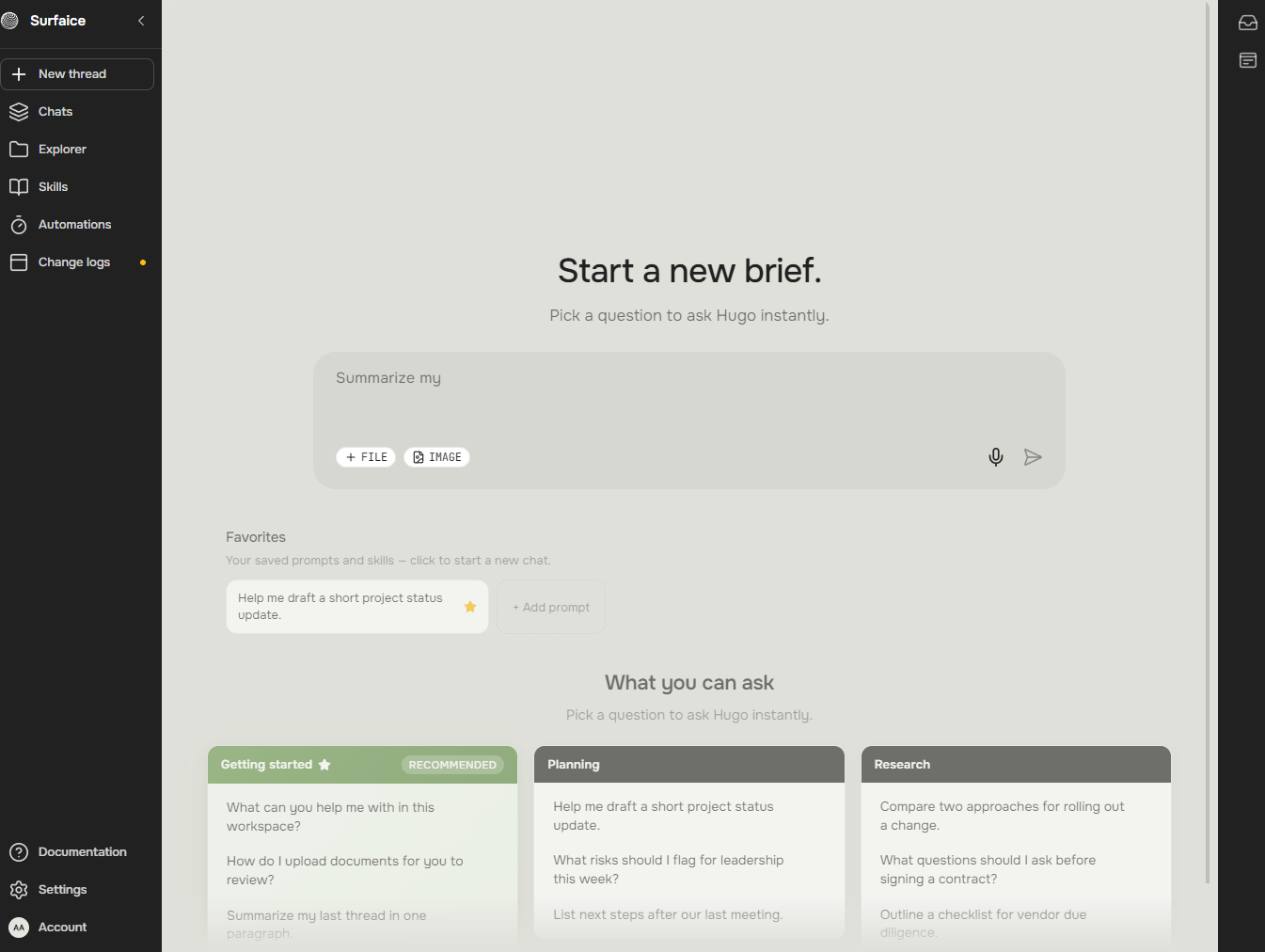 This home screen is where every walk begins: a fresh thread **(1)**, your message or dictation **(2)**, the mic **(3)**. That’s the whole surface you need.
## Talk to it
One gesture runs everything. Before a walk starts, the mic sits in the message box; once the walk panel is open, the controls move onto the panel — you never reach into the chat.
**tap & speak → keep the take → send**
### Dictate in takes — the text adds up
Keeping a take doesn’t send anything. Your words sit in the message box, editable — and when you tap the mic again, the new take **continues after the old text instead of replacing it**. So the natural rhythm is: talk, keep, walk a few steps, talk again — and send several batches of findings as one message when you’re ready.
* The panel stays in view the whole time — scroll it, check a line, keep talking.
* Loud site or a fumbled term? Fix the text before you send — you’re the editor.
* While the agent processes one message, you can already dictate the next.
## Start a walk
From the home screen, two taps and a sentence.
Tap `+ New thread`. One thread per store, always.
Tap the mic and say where you are — store number, name, or address:
> 🗣 🗣`“Start a new punch walk for store 3085”`
This home screen is where every walk begins: a fresh thread **(1)**, your message or dictation **(2)**, the mic **(3)**. That’s the whole surface you need.
## Talk to it
One gesture runs everything. Before a walk starts, the mic sits in the message box; once the walk panel is open, the controls move onto the panel — you never reach into the chat.
**tap & speak → keep the take → send**
### Dictate in takes — the text adds up
Keeping a take doesn’t send anything. Your words sit in the message box, editable — and when you tap the mic again, the new take **continues after the old text instead of replacing it**. So the natural rhythm is: talk, keep, walk a few steps, talk again — and send several batches of findings as one message when you’re ready.
* The panel stays in view the whole time — scroll it, check a line, keep talking.
* Loud site or a fumbled term? Fix the text before you send — you’re the editor.
* While the agent processes one message, you can already dictate the next.
## Start a walk
From the home screen, two taps and a sentence.
Tap `+ New thread`. One thread per store, always.
Tap the mic and say where you are — store number, name, or address:
> 🗣 🗣`“Start a new punch walk for store 3085”`
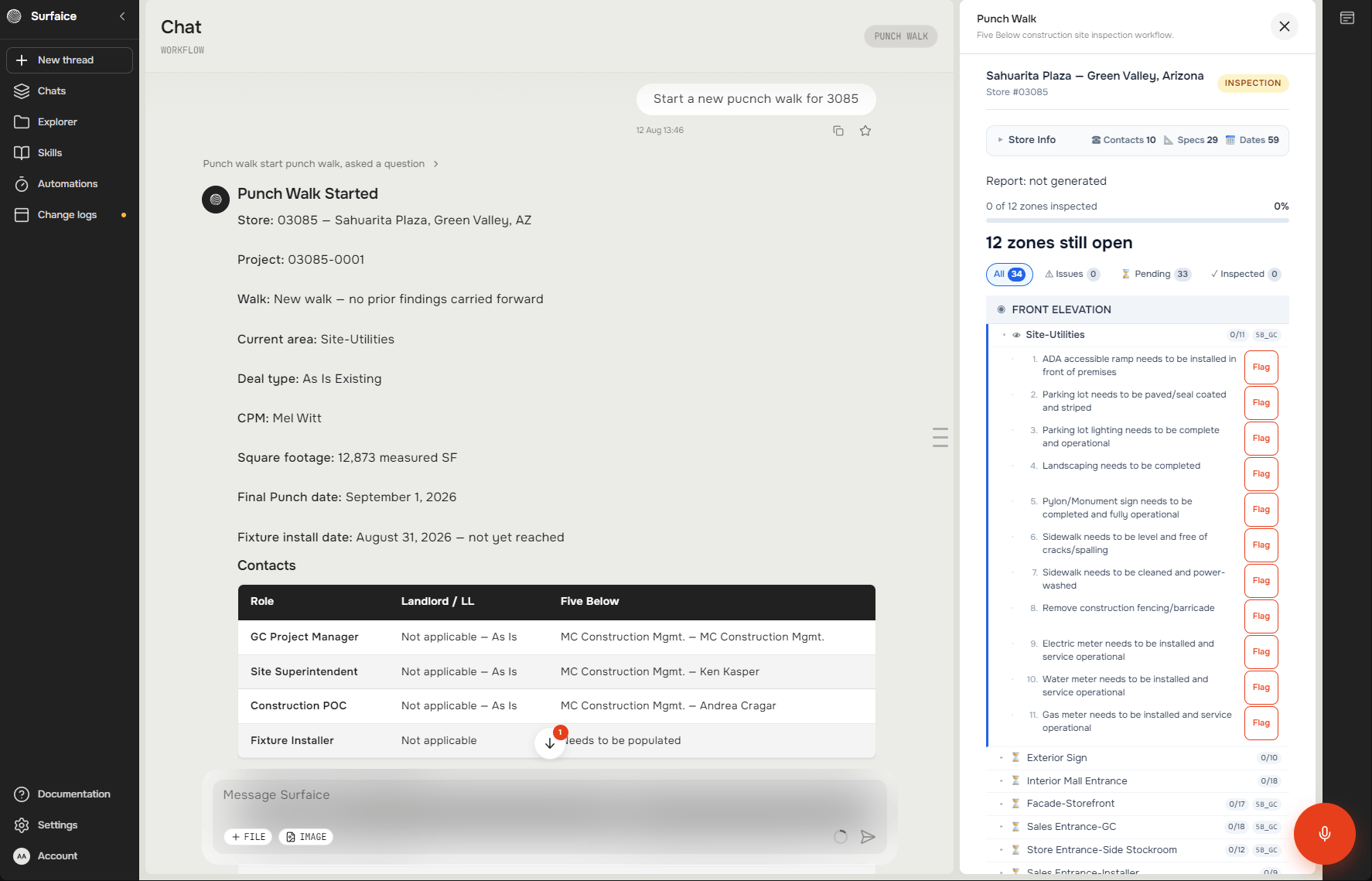
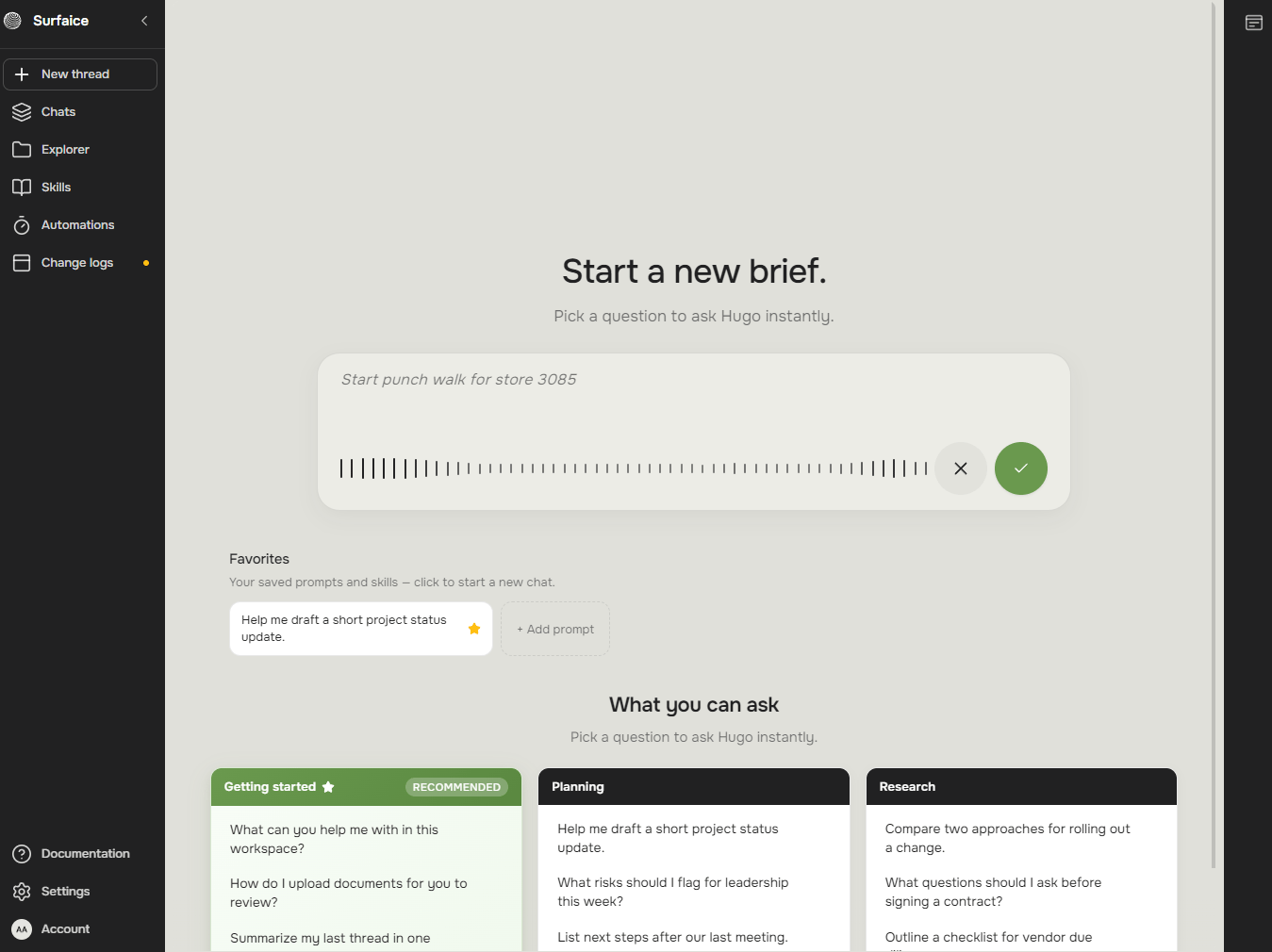 The agent pulls the store from SiteFolio — contacts, key dates, deal type — and opens the **walk panel** on the right: every **section** of this store’s prototype, and inside each section its **punch items**. That’s the whole vocabulary. If the panel ever gets closed, the `PUNCH WALK` button in the top right corner brings it back.
 ### If the store already has a walk
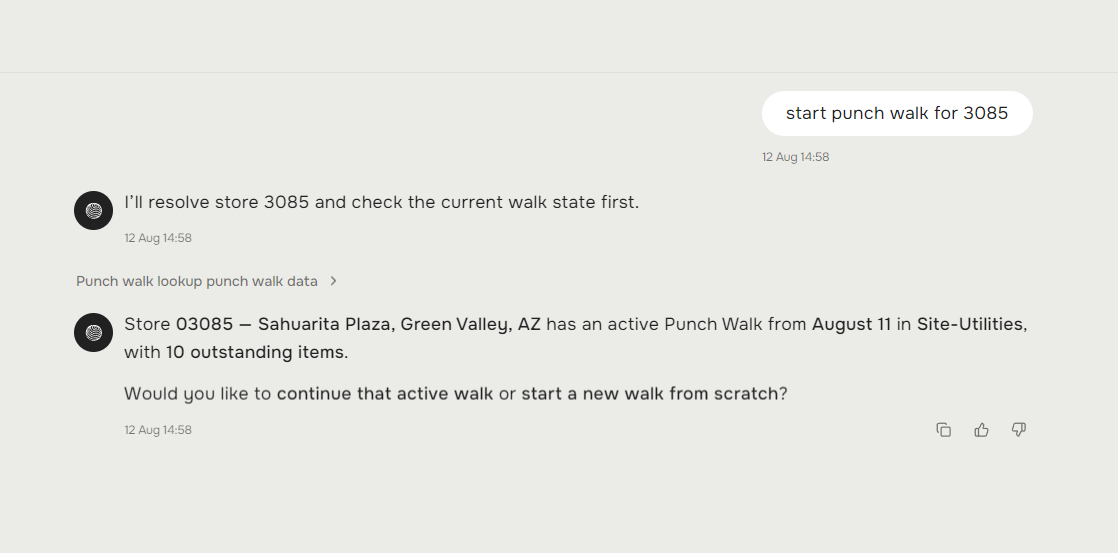
The agent tells you what it found and asks:
* **Continue the active walk** — you’re resuming: same visit, or back to close out the outstanding items.
* **Start a new walk from scratch** — a fresh 100% walk.
### If the store already has a walk
The agent tells you what it found and asks:
* **Continue the active walk** — you’re resuming: same visit, or back to close out the outstanding items.
* **Start a new walk from scratch** — a fresh 100% walk.
 **During the test period:** feel free to run a walk on the same store from scratch as many times as you like — that’s what the test is for. Practice walks don’t break anything.
## Setup questions — one minute
The only form-like part of the walk, right before observations start.
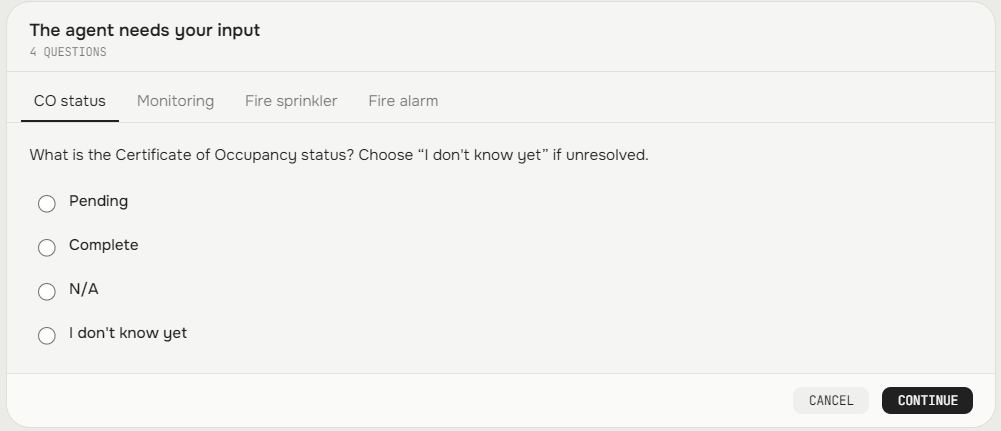
**The compliance card.** CO status, Monitoring, Fire sprinkler, Fire alarm — one card, four tabs, same answers as the old form. Tap or say them. Not sure? *“I don’t know yet”* is a real answer — the agent brings it back before the final report, so nothing slips.
**During the test period:** feel free to run a walk on the same store from scratch as many times as you like — that’s what the test is for. Practice walks don’t break anything.
## Setup questions — one minute
The only form-like part of the walk, right before observations start.
**The compliance card.** CO status, Monitoring, Fire sprinkler, Fire alarm — one card, four tabs, same answers as the old form. Tap or say them. Not sure? *“I don’t know yet”* is a real answer — the agent brings it back before the final report, so nothing slips.
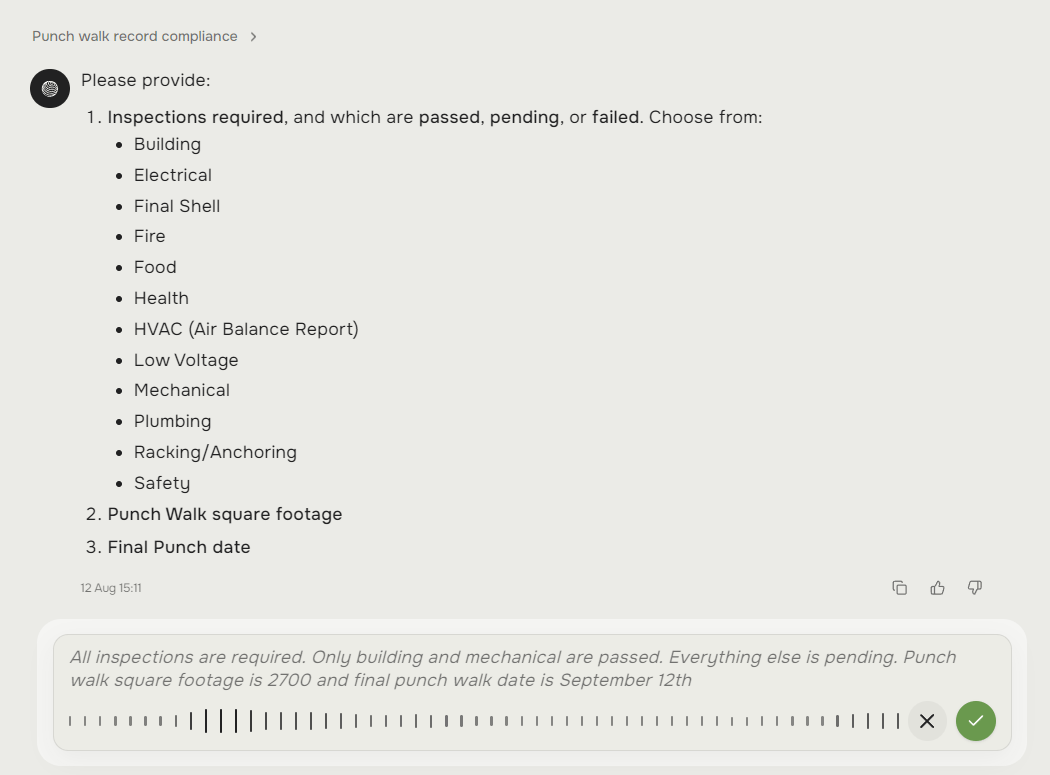
 **Then one dictation covers the rest.** The agent lists the twelve inspections and asks for the square footage and the Final Punch date — answer all three in one take:
> 🗣 🗣`“All inspections are required. Only building and mechanical are passed. Everything else is pending. Punch walk square footage is 2700 and final punch walk date is September 12th”`
**Then one dictation covers the rest.** The agent lists the twelve inspections and asks for the square footage and the Final Punch date — answer all three in one take:
> 🗣 🗣`“All inspections are required. Only building and mechanical are passed. Everything else is pending. Punch walk square footage is 2700 and final punch walk date is September 12th”`
 ### Installer sections — settled right here
Right after setup the agent checks the schedule, and if the fixture install date hasn’t arrived, it asks straight away: *“Should I skip all Fixture Installer sections for this walk as not started?”* Say yes — all nine are out in one action, and it’s reversible (*“bring the installer sections back”* works any time). The same phrase works mid-walk too:
> 🗣 🗣`“Skip all the installer sections in one go”`
## Walk the store
The main part — and the shortest to explain, because you already know how to do a walk.
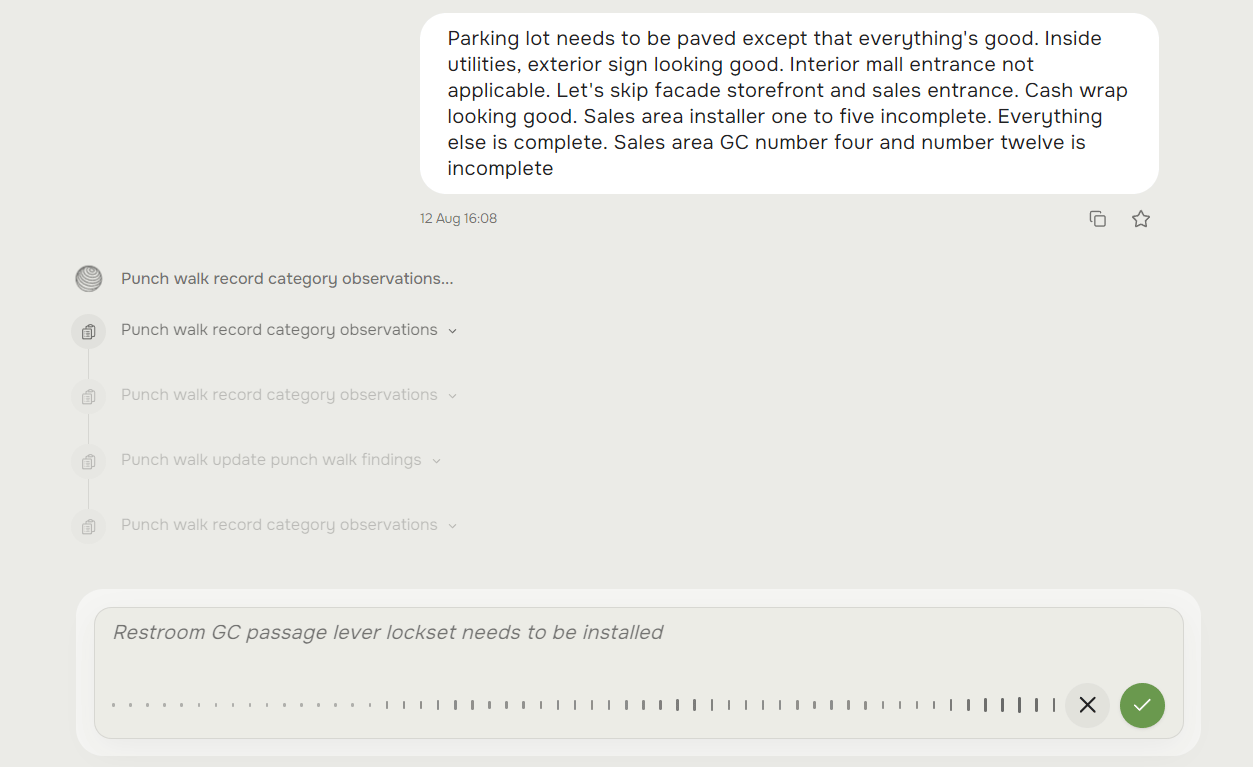
Don’t walk the checklist — walk the store, and batch what’s in front of you. One message that covers half the front of house beats ten messages that close one line each. Real examples, all fair game:
**One section, mixed statuses:**
> 🗣 🗣`“Site utilities: everything is complete except the pylon sign is not fully operational yet, and landscaping still needs to be completed”`
**One take, six sections** — jump around, mix statuses, the agent sorts every piece into place:
> 🗣 🗣`“ADA accessible ramp is not ready and the parking lot needs to be paved. Parking lot lights are not working. Other than that, all good for site utilities. Exterior sign is all complete. Interior mall entrance is not applicable. Facade storefront is looking good. Sales entrance GC, items five to ten are incomplete. Everything else is complete”`
**A clean area is one sentence:**
> 🗣 🗣`“Exterior sign is all good, no issues”`
After each area the agent confirms what it recorded and offers the next nearby one. Follow it or ignore it — *“what’s left?”* works any time.
### Installer sections — settled right here
Right after setup the agent checks the schedule, and if the fixture install date hasn’t arrived, it asks straight away: *“Should I skip all Fixture Installer sections for this walk as not started?”* Say yes — all nine are out in one action, and it’s reversible (*“bring the installer sections back”* works any time). The same phrase works mid-walk too:
> 🗣 🗣`“Skip all the installer sections in one go”`
## Walk the store
The main part — and the shortest to explain, because you already know how to do a walk.
Don’t walk the checklist — walk the store, and batch what’s in front of you. One message that covers half the front of house beats ten messages that close one line each. Real examples, all fair game:
**One section, mixed statuses:**
> 🗣 🗣`“Site utilities: everything is complete except the pylon sign is not fully operational yet, and landscaping still needs to be completed”`
**One take, six sections** — jump around, mix statuses, the agent sorts every piece into place:
> 🗣 🗣`“ADA accessible ramp is not ready and the parking lot needs to be paved. Parking lot lights are not working. Other than that, all good for site utilities. Exterior sign is all complete. Interior mall entrance is not applicable. Facade storefront is looking good. Sales entrance GC, items five to ten are incomplete. Everything else is complete”`
**A clean area is one sentence:**
> 🗣 🗣`“Exterior sign is all good, no issues”`
After each area the agent confirms what it recorded and offers the next nearby one. Follow it or ignore it — *“what’s left?”* works any time.
 ### Getting the details right
* **GC vs Installer:** some areas exist twice. Say which one you mean (*“Restroom GC”*), or the agent will ask.
* **Single lines too:** *“line 4 in electrical backboard is N/A”* touches one line, nothing else. Completing a section never closes the items you flagged.
### Beyond the checklist
Something the prototype list doesn’t cover? Add your own punch item — it lands in the section and the report:
> 🗣 🗣`“Add one new punch item — the entrance threshold plate is loose and needs to be secured”`
When “incomplete” isn’t the whole story, pin a note to the exact item. It shows on the item and travels into the report:
> 🗣 🗣`“Add a note to the pylon sign punch: electrician is scheduled for Friday to finish the hookup”`
## Finish the walk
Two taps on the panel before you leave: `Pending` — anything you missed; `Issues` — every flag, its vendor, your notes. Then:
> 🗣 🗣`“I’m done — generate the report”`
The agent asks for anything still required — an unanswered compliance field, a missing date — then builds the report and drops the PDF right in the chat. Open it, download it, send it on. Smartsheet is updated automatically at the same time — nothing to re-enter.
**During the test period:** results land in the **sandbox** copy of Smartsheet, not the live one — test walks never touch production data. This switches to the live sheet at rollout.
### Getting the details right
* **GC vs Installer:** some areas exist twice. Say which one you mean (*“Restroom GC”*), or the agent will ask.
* **Single lines too:** *“line 4 in electrical backboard is N/A”* touches one line, nothing else. Completing a section never closes the items you flagged.
### Beyond the checklist
Something the prototype list doesn’t cover? Add your own punch item — it lands in the section and the report:
> 🗣 🗣`“Add one new punch item — the entrance threshold plate is loose and needs to be secured”`
When “incomplete” isn’t the whole story, pin a note to the exact item. It shows on the item and travels into the report:
> 🗣 🗣`“Add a note to the pylon sign punch: electrician is scheduled for Friday to finish the hookup”`
## Finish the walk
Two taps on the panel before you leave: `Pending` — anything you missed; `Issues` — every flag, its vendor, your notes. Then:
> 🗣 🗣`“I’m done — generate the report”`
The agent asks for anything still required — an unanswered compliance field, a missing date — then builds the report and drops the PDF right in the chat. Open it, download it, send it on. Smartsheet is updated automatically at the same time — nothing to re-enter.
**During the test period:** results land in the **sandbox** copy of Smartsheet, not the live one — test walks never touch production data. This switches to the live sheet at rollout.
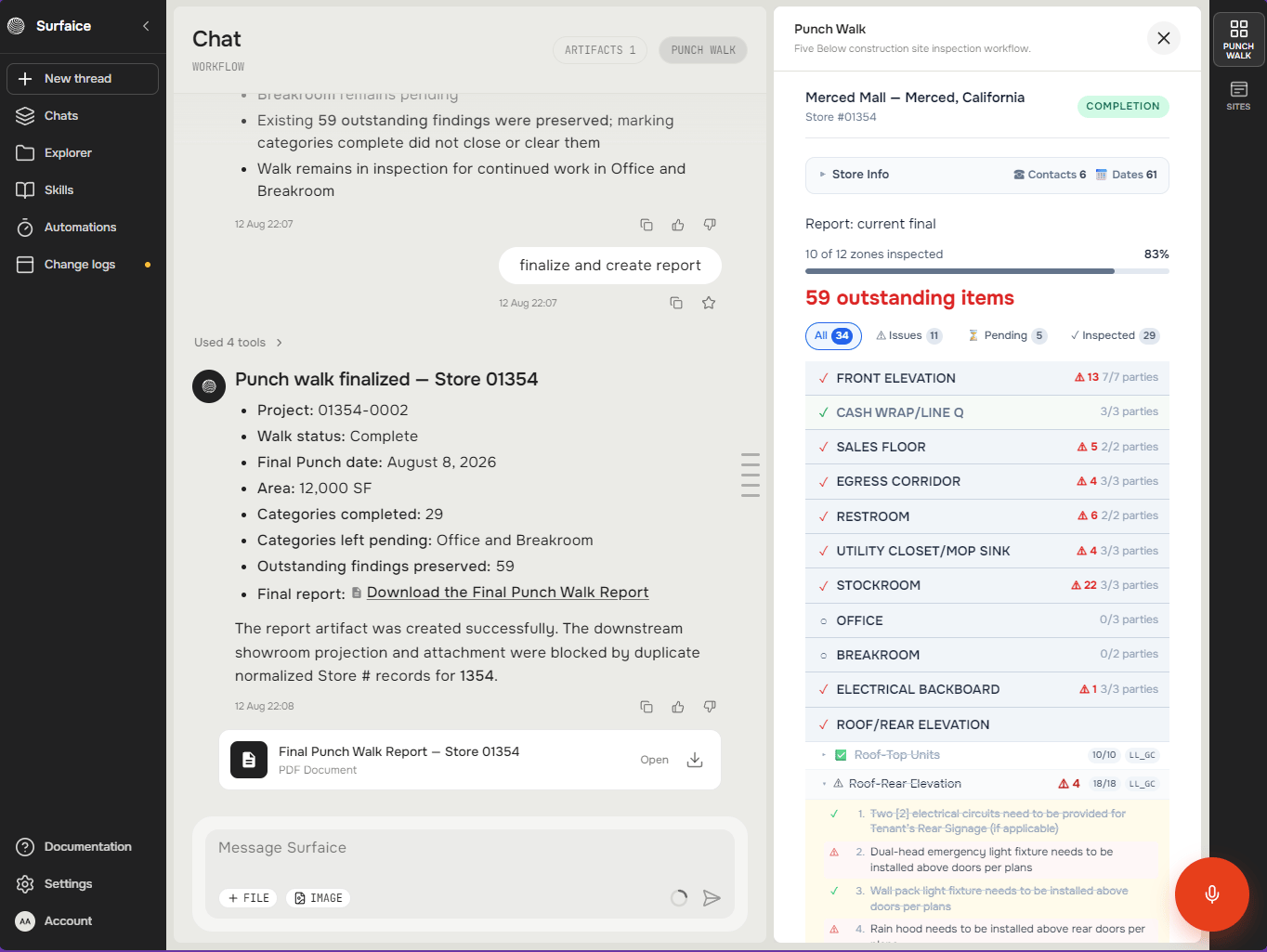
 **Leaving early?** Ask for the report anyway — you get an in-progress version, and you finish the walk later from the same thread.
## Know your screen
The reference chapter: everything the panel shows, in one place. Skim it once — and come back whenever an icon or a number puzzles you mid-walk.
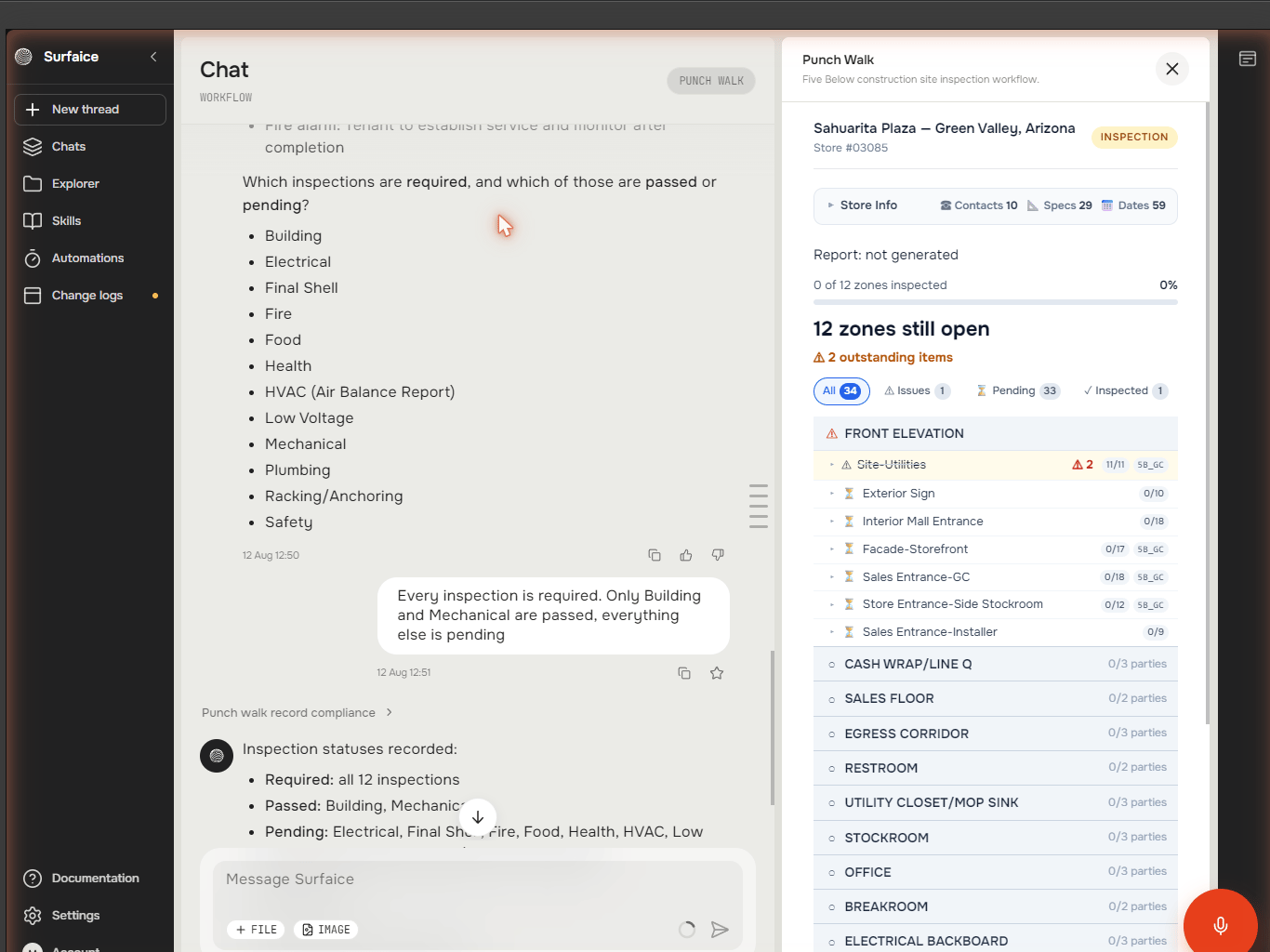
Once a walk starts, the screen splits. The **chat** on the left is the conversation: your voice notes, the agent’s confirmations and questions, the final report. The **Punch Walk panel** on the right is the live state of the walk. It updates after every message — it’s how you verify the agent caught you right, without asking.
**Leaving early?** Ask for the report anyway — you get an in-progress version, and you finish the walk later from the same thread.
## Know your screen
The reference chapter: everything the panel shows, in one place. Skim it once — and come back whenever an icon or a number puzzles you mid-walk.
Once a walk starts, the screen splits. The **chat** on the left is the conversation: your voice notes, the agent’s confirmations and questions, the final report. The **Punch Walk panel** on the right is the live state of the walk. It updates after every message — it’s how you verify the agent caught you right, without asking.
 ### The panel, top to bottom
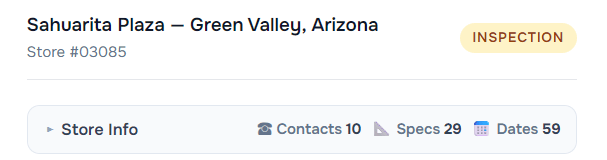
**Store header and Store Info.** Which store you’re in, plus reference tabs — **Contacts**, **Design Attrs**, **Schedule** — so phone numbers, specs and dates are one tap away mid-walk.
### The panel, top to bottom
**Store header and Store Info.** Which store you’re in, plus reference tabs — **Contacts**, **Design Attrs**, **Schedule** — so phone numbers, specs and dates are one tap away mid-walk.
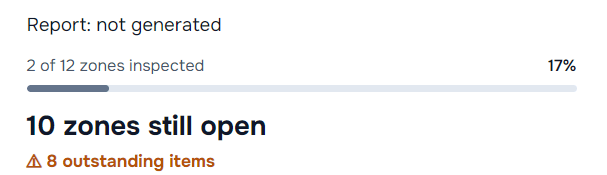
 **Progress.** Zones inspected, report status, and how many items are still outstanding.
 **Filters.** `Pending` is “what’s left”, `Issues` is every flag with its vendor and notes, `All` and `Inspected` round it out.
 **Sections.** Every section of this store’s prototype, grouped by area. Each row: status, a counter like **11/11** (lines recorded / total), and whose scope it is.
⏳ not started · ✅ inspected · ⚠️ has open issues · — N/A · *skipped* · `5B_GC` / `LL_GC` — responsible party
**Sections.** Every section of this store’s prototype, grouped by area. Each row: status, a counter like **11/11** (lines recorded / total), and whose scope it is.
⏳ not started · ✅ inspected · ⚠️ has open issues · — N/A · *skipped* · `5B_GC` / `LL_GC` — responsible party
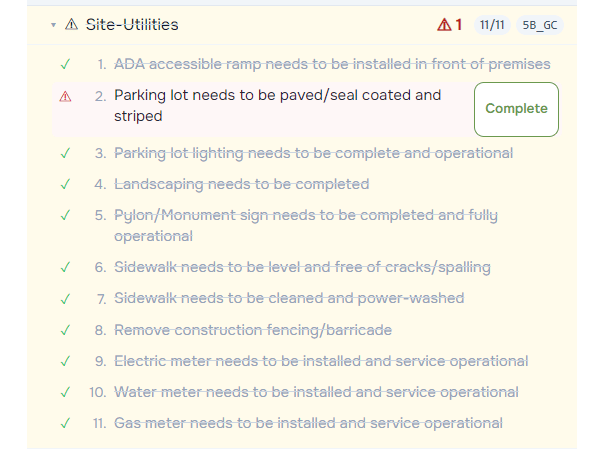
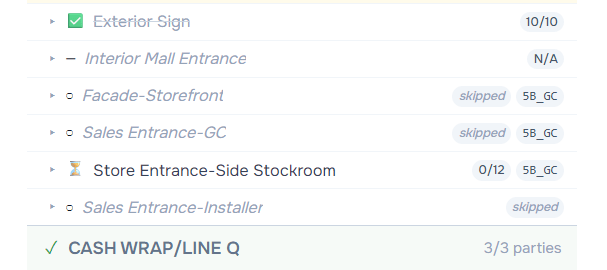 **Punch items.** Tap a section to expand its checklist lines — the actual punch items. Recorded lines get a green check; a flagged line shows ⚠️ and a one-tap Complete` button to close it later; untouched lines carry Flag`. Voice does all of this in bulk; the buttons are for quick single fixes.
 **Panel closed?** Tap the `PUNCH WALK` button in the top right corner of the screen — it comes right back, nothing is lost. The red dot on it means a walk is live in this thread.
**Where the agent’s questions appear:** at the bottom of the chat. If you’ve scrolled up, a red badge on the ↓ arrow means it’s waiting on you.
## If something goes wrong
* **The app froze or a message hangs.** Your walk lives outside the chat: open a new thread and say *“continue the punch walk for store 1234”* — every section and punch is there.
* **It misheard you.** Fix the text before sending, or say the correction after — plain words, no special commands.
* **It filed something wrong.** Tell it where the item belongs — it moves it and learns.
* **The panel is gone.** `PUNCH WALK`, top right corner of the screen.
* **A section says “skipped” and shouldn’t.** *“Bring the restrooms section back into the walk”* — one sentence recovers it.
* **Anything else.** Email us the same day it happens — fixes usually land within the week. Every walk and every correction trains the agent on your stores, your terms, your way of working.
## Phrases that work
Not scripts — patterns. Say it your way; these are the shapes the agent hears every day.
**Start & resume**
“Start a new punch walk for store 1234” · “Continue the punch walk for store 1234”
**Statuses**
“…is complete” · “…is incomplete / not ready / not working” · “…is not applicable” · “items five to ten are incomplete”
**Sections**
“Skip all the installer sections in one go” · “Bring the restrooms section back” · “What’s left?”
**Your own items & notes**
“Add a punch item — …” · “Add a note to the … punch: …”
**Wrap up**
“I’m done — generate the report”
***
*Five Below × Surfaice AI · Punch Walk Guide v6 draft · questions: [dev@surfaice.pro](mailto:dev@surfaice.pro)*
**Panel closed?** Tap the `PUNCH WALK` button in the top right corner of the screen — it comes right back, nothing is lost. The red dot on it means a walk is live in this thread.
**Where the agent’s questions appear:** at the bottom of the chat. If you’ve scrolled up, a red badge on the ↓ arrow means it’s waiting on you.
## If something goes wrong
* **The app froze or a message hangs.** Your walk lives outside the chat: open a new thread and say *“continue the punch walk for store 1234”* — every section and punch is there.
* **It misheard you.** Fix the text before sending, or say the correction after — plain words, no special commands.
* **It filed something wrong.** Tell it where the item belongs — it moves it and learns.
* **The panel is gone.** `PUNCH WALK`, top right corner of the screen.
* **A section says “skipped” and shouldn’t.** *“Bring the restrooms section back into the walk”* — one sentence recovers it.
* **Anything else.** Email us the same day it happens — fixes usually land within the week. Every walk and every correction trains the agent on your stores, your terms, your way of working.
## Phrases that work
Not scripts — patterns. Say it your way; these are the shapes the agent hears every day.
**Start & resume**
“Start a new punch walk for store 1234” · “Continue the punch walk for store 1234”
**Statuses**
“…is complete” · “…is incomplete / not ready / not working” · “…is not applicable” · “items five to ten are incomplete”
**Sections**
“Skip all the installer sections in one go” · “Bring the restrooms section back” · “What’s left?”
**Your own items & notes**
“Add a punch item — …” · “Add a note to the … punch: …”
**Wrap up**
“I’m done — generate the report”
***
*Five Below × Surfaice AI · Punch Walk Guide v6 draft · questions: [dev@surfaice.pro](mailto:dev@surfaice.pro)*